The icastPro Manager module is a web based tool intended for webcast organizers and collaborators to be able to organize and prepare/manage for any upcoming events. .
In addition, as an online tool, you can manage everything remotely, from any location and from any device.
***NO download and NO installation required***
In this article...
icastPro Login
To access the platform, go to the following page: http://www.icastpro.ca/manager
Step 1- You will be prompted to enter your email address
Step 2- Enter a password or request a magic link by email.
For new and first time logins refer to the Director Login article found in Platform User Guide.
Opening a session
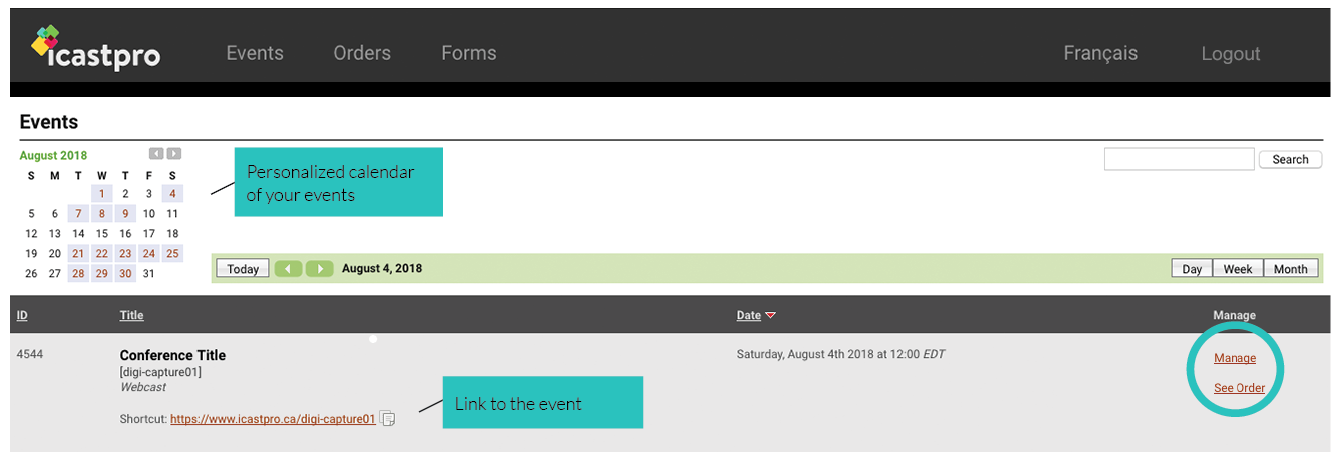
On this page you have access to your personalized calendar which displays all your events. You also have access to the event participant link and have the possibility of viewing the original order.
NOTE : Only Organizers have access to viewing orders, collaborators do not.
Manager
Upon selecting the “Manage” button, various functions become available to you. Statistics, Access Viewers, Sessions, Questions, Director, Users, Survey, and the Order form.
Statistics
The statistics tab is the landing page once you enter the Manager section. This page provides you with basic statistic information regarding your event. You will find the following information:
- Event title
- Total: Total number of visits during the selected time range
- Peak: The most amount of viewers at one time
- Peak Time: The time the peak occured
- Average time: The average duration of viewers watching
- Export to Excel option
The statistics are directly related to the fields entered initially on the registration page. To filter to a different date turn on the filter button at the bottom left of your screen and select the new date.
In the rest of the stats tab, you will find the following details:
- Viewing Time: This wheel shows how many viewers watched the webcast for the selected duration of time.
- Languages: This is a breakdown of the choice of language. Hovering your mouse over this wheel will show the percentage of viewer's that have watched the webcast in the selected language.
- Streams
- Visits: This is a breakdown of live and on demand participation from viewers. Hovering your mouse over this graph will show how many viewers watched at the selected range.
- Map: This map shows the geographic breakdown of the audience.
This information is compiled in real time, geolocalized, and can be exported in EXCEL format, according to the time period selected.
Access
This section displays all the guests that have been given access, permission, to view the webcast, it displays the guest list that has been imported in the registration, including the following details:
- Number of invited guests
- Invited guests name
- Invited guests email address
- Dates on which they've been added
- Dates on which they've logged into icastPro
In addition to viewing the guest list, it can also be modified by either adding new guests, bulk importing a CSV File with a new list of multiple guests, or deleting all guest currently added. There is also an activity log to view all new guest added to the list, as well a direct access option which will automatically open the link to watch the event live, without having to register.
Viewers
This page displays information pulled from the registration page:
- Number of people registered to the webcast
- Registrant’s names
- Registrant’s email addresses
- Dates on which they registered
- Other details contained in the fields on the registration page
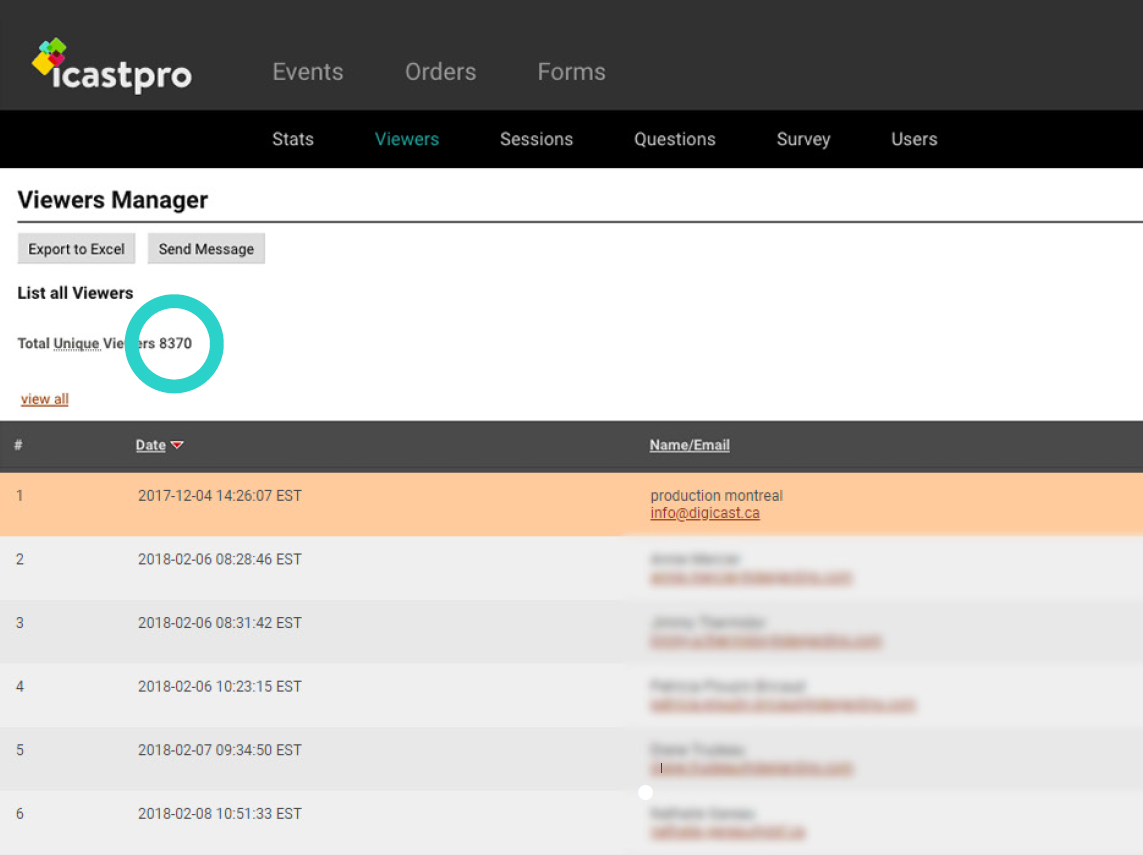
Upon requesting your webcast (when completing the order form) you may customize your registration fields. These will appear in the “Viewer” tab and will affect your statistics report later on.
Furthermore, for security reasons, viewers may not register more than once per webcast. This ensures that each entry remains unique.
Note that advanced registration is possible, even several weeks prior to the webcast. You can also count on these registrations to organize your reminders, by exporting this list to EXCEL.
Sessions
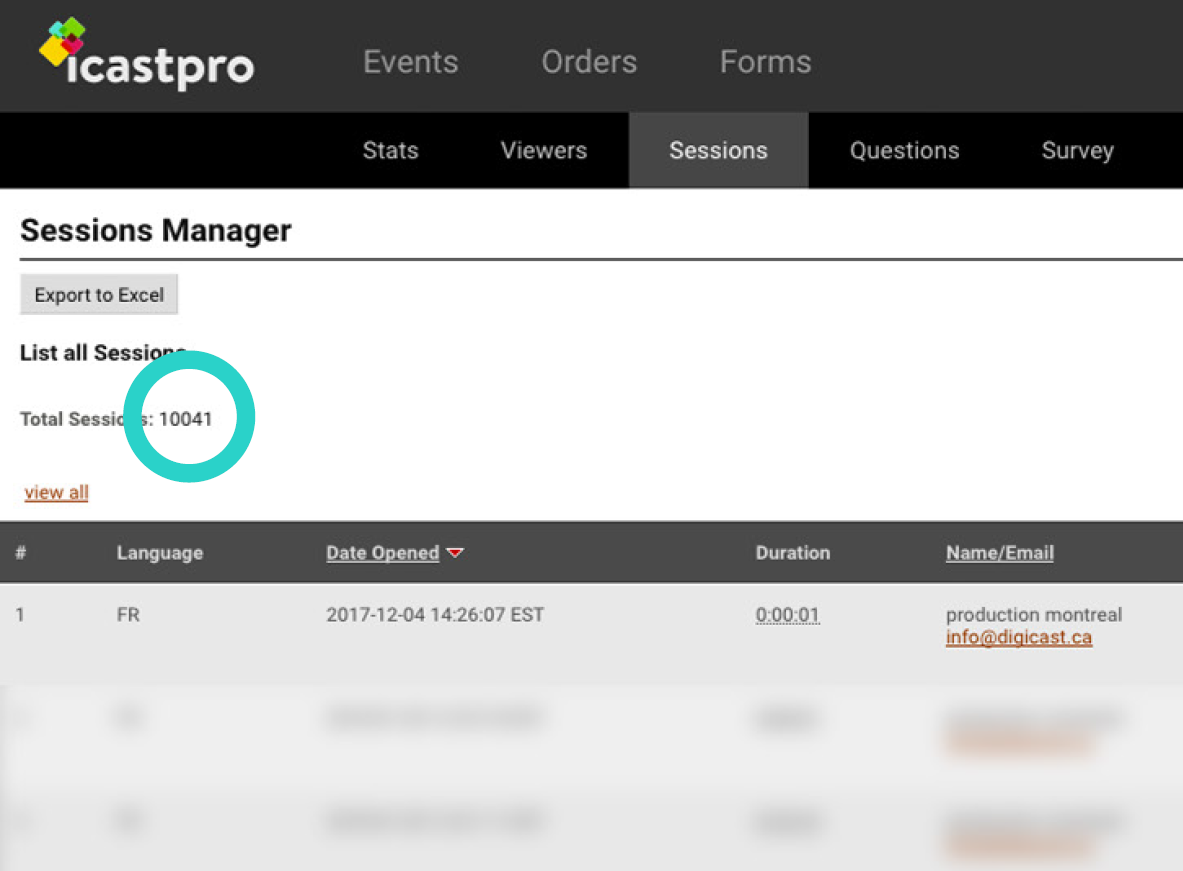
This section provides the list of live participants connected to the webcast, including the following details:
- Language in which they are viewing the webcast (if needed)
- Login time
- The duration of their connection
- Identification (name, email, IP address)
- Viewing format (direct or archived)
Note that this data is downloadable in EXCEL format.
Questions
The page offers offers the possibility of managing all questions submitted by the audience throughout the presentation.
Available options:
- Hide: enables you to filter your questions and blacks out the question. To unhide, click on the Hide title and uncheck the box when the question reappears.
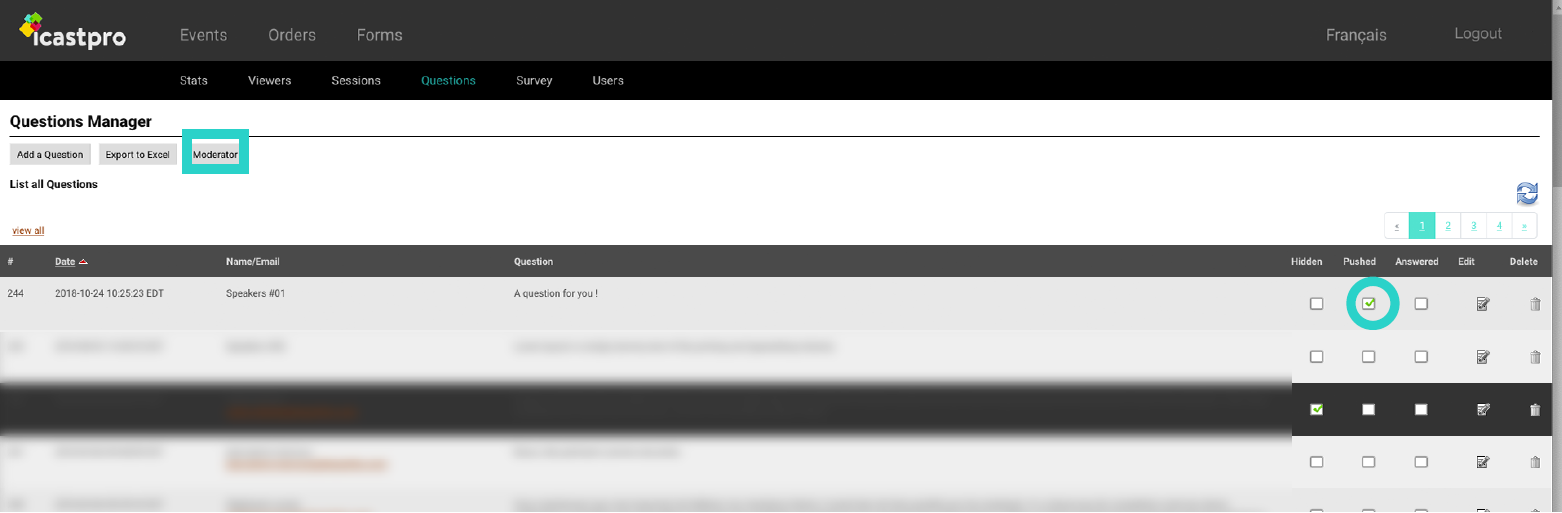
- Push: displays the question on a web page destined to the speaker (may be displayed on any screen). To access this web page, known as the moderator, click on the ''Moderator'' button located at the upper left corner of the tab.
- Answered: to visually indicate that the question has been answered and avoid repetition (the line will display in green), and if you are using the Moderator then the question will disappear from that list.
- Edit: to highlight, rephrase or complete a question
- Delete: to permanently erase a question from the table or send it to our technical support
- Add a Question: to create a question or comment to submit to the speakers
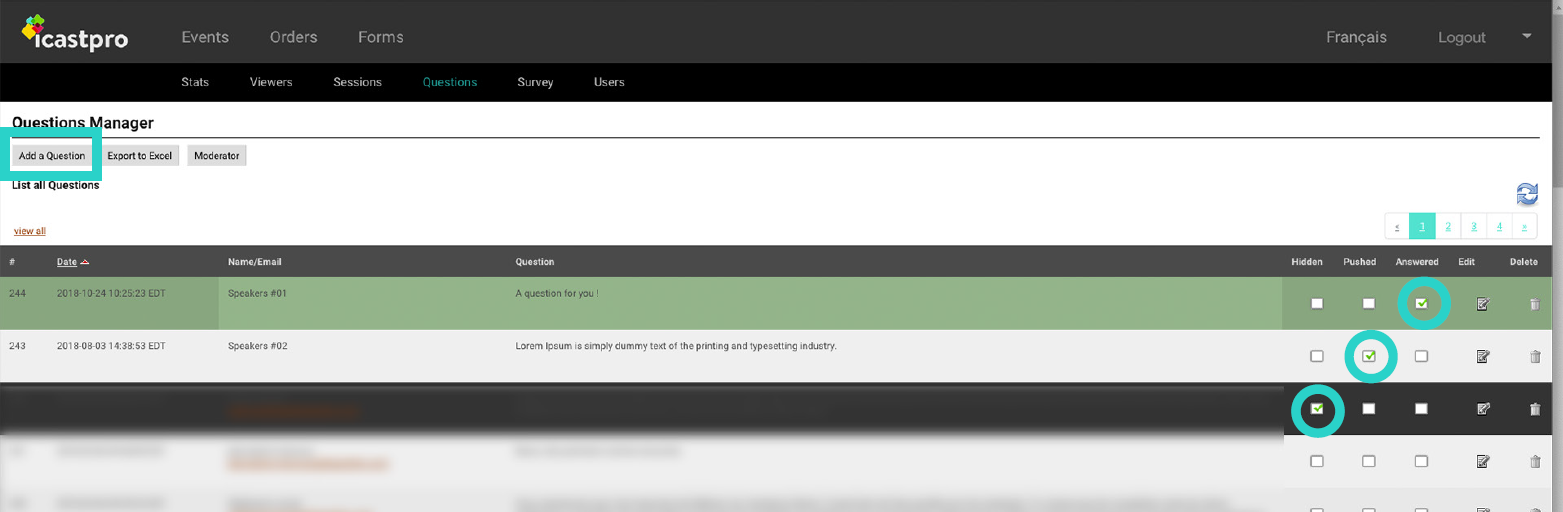
Note that the SMS option is also offered upon request. This section also available in EXCEL.
Question moderator
Moreover, as mentioned above regarding the “Push” option, you can manage the questions by displaying only the filtered ones to the speaker on a seperate web page called the Moderator. To get to this page press on the Moderator button.
This page which can be viewed on any device (iPad, computer, TV screen) etc...
Moderator:
Speaker's moderator screen:

Survey (optional)
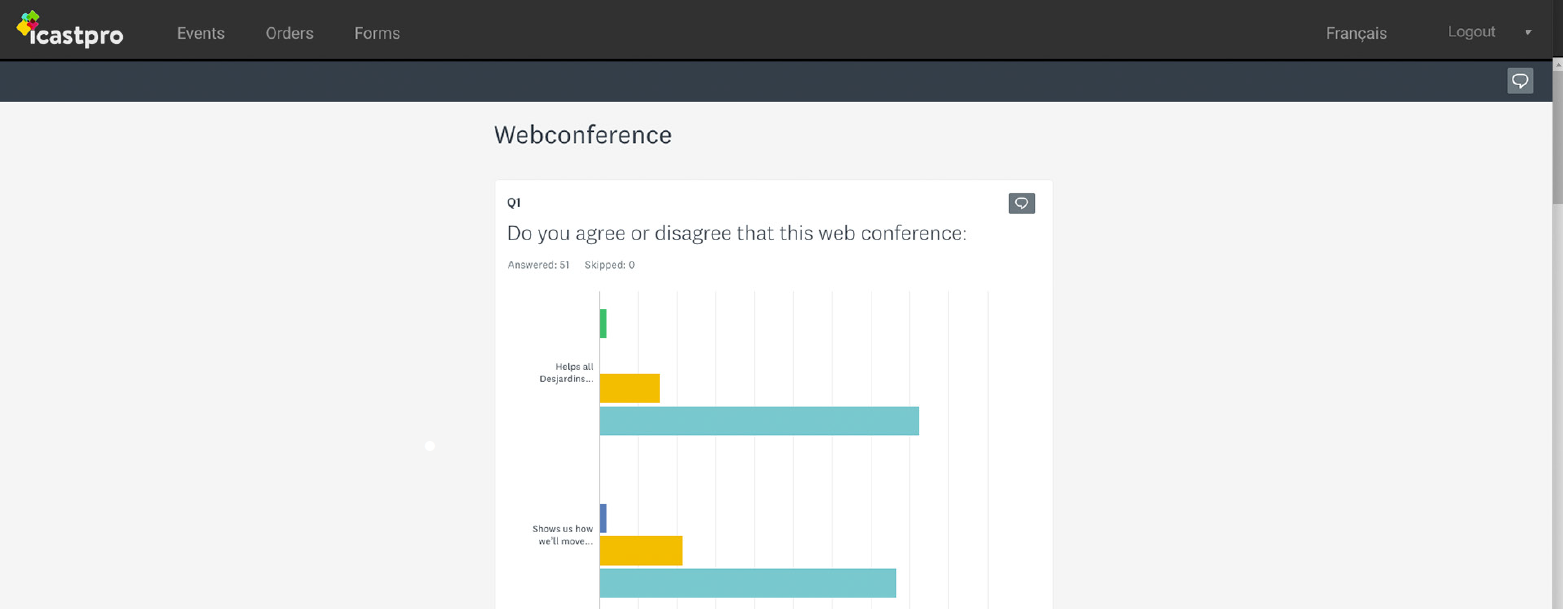
If a survey was ordered, the survey section becomes available and compiles the results in real time. The survey itself is hosted on the webcast interface which is available throughout the presentation. The results remain available even after the webcast has been archived.
Users
In this section you can easily add a Collaborator. This collaborator will have access to all functions of the event manager module. It is also possible to grant administrative access to as many people as you wish. This gives you an overview of all webcasts.
Director
The Director tool allows you to synchronize the presentation with your webcast, in real time. The slides can be controlled by any Collaborator or Organizer designated to advance the deck. (Collaborator = Speaker, Project Manager, Executive Assistant...)
For a full in depth guide on the Director, refer back to the Director article found in the Platform User Guide.