This article will cover the following items:
9 - Speaker Dial-in Instructions
11 - Use your keyboard to push slides
Director
The Director tool allows you to synchronize the presentation with your webcast, in real time. The slides can be controlled by any Collaborator or Organizer designated to advance the deck.
(Collaborator = Speaker, Project Manager, Executive Assistant...)
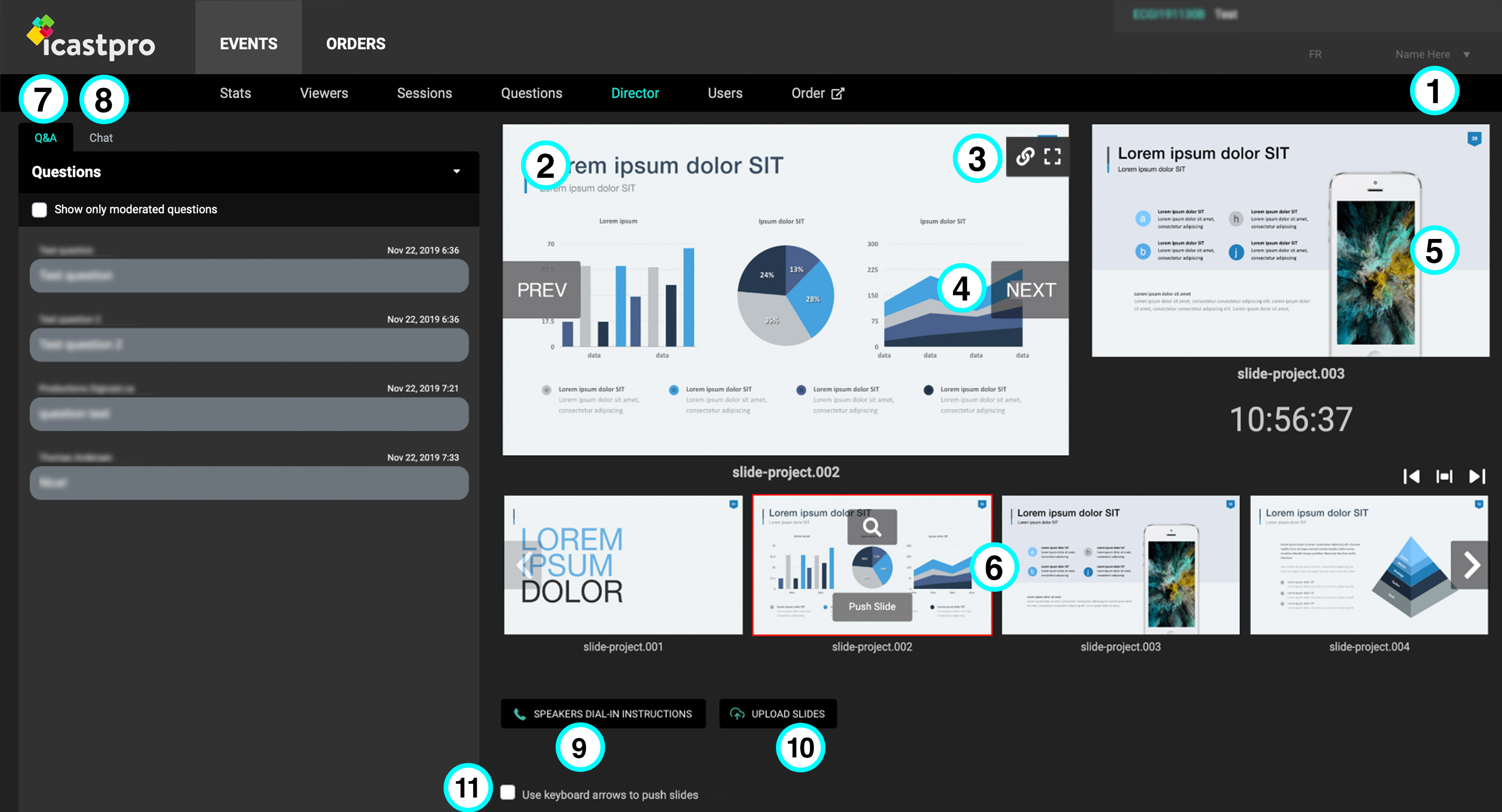
1 - Your account
The new Director is linked directly to your account, whether you are an Organizer or Collaborator. You can change your password by clicking on Your Profile.
2- Slides
The slide which is currently presented to participants online.
3 - Share the presentation
One key option in the Director is to display the presentation on a second screen for participants in a room or for a remote Speaker. This allows all collaborators to see the presentation in real time during the webcast.
4 - Advance the slides
Simply click on "Next" or "Previous" to move through the deck during the presentation. The slides will change in real time for Organizers and Collaborators connected to the Director.
5 - Upcoming slide
This view allows you to prepare for the upcoming slide.
6- Navigate through your deck
This section enables you to navigate through your whole deck by using the arrows. If you want to skip a slide or go back to a previous one, you can do so by clicking "push" on that specific slide and it will be shown on the webcast.
7 - Questions
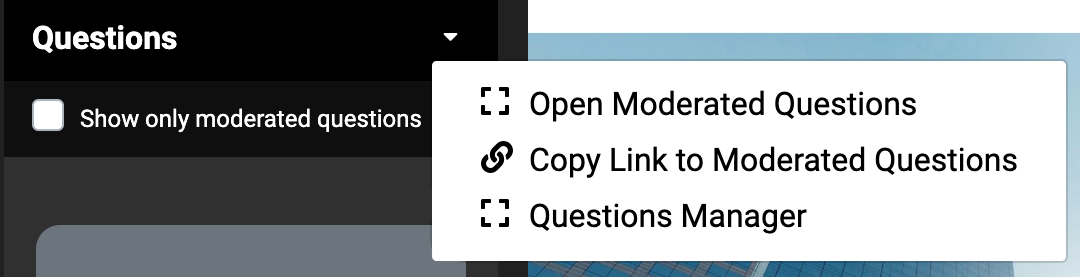
The Questions window allows you to see either all questions or only the moderated questions. If you click on the small arrow pointing down, you will have access to a drop down menu. This gives the Organizers a direct access to moderated the questions tab.
8- Chat
The Chat option is offered in the Director to allow Collaborators, Organizers and the Digicast Operator to communicate in real time during the webcast.
9 - Speaker Dial-in Instructions
Simply click on this button to access the connection information for Speakers and Collaborators. Note that this is not information for your participants viewing the webcast.
10 - Upload your slides
Slides must be uploaded to the Director in PDF format. This new feature allows you to upload a revised deck up until the start of the webcast. The previous is automatically deleted.
11 - Use your keyboard to push slides
Tick this box if you'd like to use your keyboard to push the slides during the presentation.