Depending on the security option you have pre-selected for your webcast, an email list must be imported to iCastPro.
In order to do it, the first step is formatting your spreadsheet following this order of columns. Column A is mandatory, but others can be left blank:
- A: Email (required)
- B: Password (leave blank for automatic generation)
- C: First Name
- D: Last Name
- E: Company
- F: Preferred Language: "en", "fr" (for multi-language events)
- G: Alternate Email
- H: User ID
- I: Supplementary Info
- J: User Segment
- K: Vote Weight

The spreadsheet must be saved in the format CSV UTF-8 (Comma delimited) (.csv)

After this, go to your Event Manager on iCastPro.
In the Event Manager, go to the Access tab and click on the button Bulk Import.
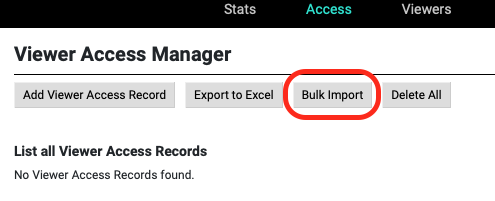
Following, select the file saved on your computer and click Import.
After selecting import, the dialog box will display the following information. Verify at the end if viewers were added. If the import failed, please verify your spreadsheet formatting or contact the Digicast team for further assistance.
After this you can go back to your Access Manager to find the users you have imported.
IMPORTANT NOTE
Make sure your list is up to date and do not export an access list from an event and import it to another.
The formatting on these files are different and this action can only be reverted by removing all users at once or each user at a time.