- Log in
Go to www.icastpro.ca/manager and enter your credentials
To order your webcast, click on Add an order, on the top right of the screen:

Fill out all the information about the event in the form: date, time and time zone, duration, format. Then, click Next at the bottom of the page. Fill all languages, content, technical and audience pages.
* If you have any questions, click on the information logo on the right and a small window will appear.
If you don’t have all the information at hand, you can save your booking at any time and complete it later.
- TECHNICAL SETUP
Let us know as much information as you can about how your speakers will connect: will they be all sitting in a room or will some or all connect via phone from different locations?
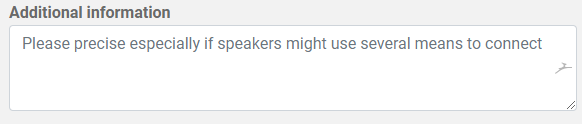
If you are planning a video webcast, we will be in contact with you to go over all the details of the setup and type of equipment used.
- Submit your order
The Digicast team will review the order within a 12h window. Keep in mind that, once submitted, the order is pending approval. Once approved, you will receive an email informing you that your order has been approved.
- Manage your webcasts
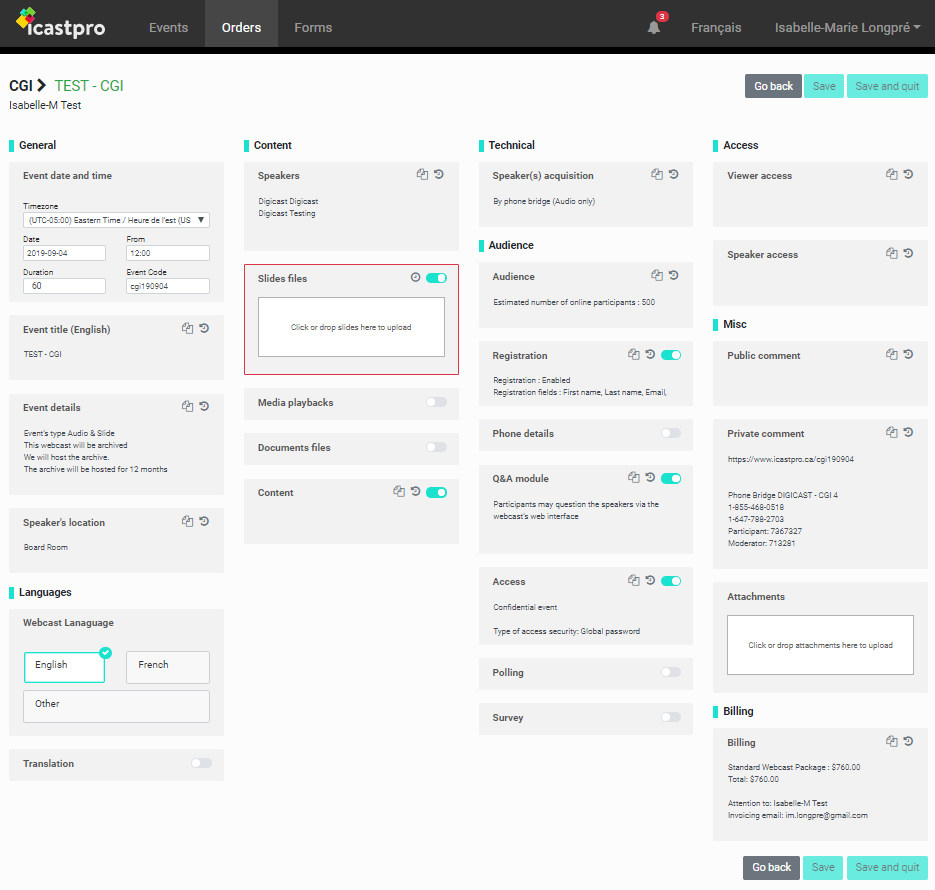
Once an order has been approved, you can manage your orders and find a summary of your webcast information by clicking on Manage:

This section is the actual management environment of the webcast.
- Important information provided by Digicast
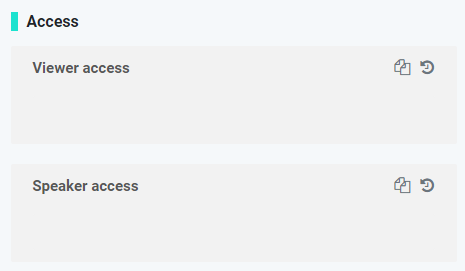
The information to share with your speakers and members are found in the Order form, under “Access”:
The Viewer access box will contain the webcast link to share with the participants. Members simply need this link to follow the webcast online.
The Speaker access will contain the Director link used to view and push the slides, chat with our team and manage questions. Speakers should never follow the webcast with the Viewer access.
- Key points
You are responsible for providing all required information for your webcast. A notification will be sent to Digicast advising them on new or modified information.
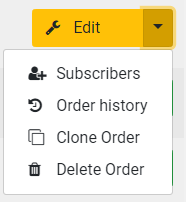
If you are planning a sequence of events with the same parameters, you can save one as a draft. This will allow you to clone the order to submit the official dates throughout the year. You cannot clone an event once it’s been submitted.
You can also add Subscribers to your event. The subscriber will have access to the Order Form to edit and add the presentation, speaker names, etc. The subscribers will also receive notifications.
- Notifications
As the webcast approaches, you will receive notifications by email for items to submit: presentation, speakers names and titles, etc. If you have selected other content to be played during the webcast (audio or video), you will also need to submit here. You can find all your notifications at the top right of the screen.

- Billing
The Digicast team will send you a quote. Please enter the PO# in the Order Form when confirmed.